Use Business Central Access Token as a Global variable in Postman
First things first. Getting organized.
When initially exploring Postman for API testing, I underutilized many of its powerful features, such as variable management, which led to inefficient workflows. However, as my projects involving Microsoft Dynamics 365 Business Central grew in complexity, I recognized the importance of optimizing these tasks.
Workspace Setup
In Postman, a practical way to manage configurations across various testing scenarios involves using Workspaces and environments strategically. Each Workspace in Postman is akin to a tenant in Business Central, housing tenant-specific variables like client_secret, access_token, and client_id. These variables are crucial and vary significantly across tenants, necessitating secure and isolated management.
Collection Configuration
Postman collections, in my approach, are not directly tied to specific environments like development or production. Instead, collections are effectively used to organize APIs by extension or functionality. This distinction is important for maintaining a clean and organized setup where each collection can contain multiple requests related to a particular aspect of Business Central.
Environment Usage
In Postman, environments—clearly labeled as such within the tool—are designed to represent different operational contexts such as Production, Sandbox, or any other specific configurations you might need. These environments facilitate the flexible management of variables that are unique to each context, without impacting the global or Workspace-specific settings.
Here’s how you can structure your Postman setup effectively:
- Workspace Setup: Align each Workspace with a tenant, configuring global variables that are essential and common across that tenant.
- Collection Configuration: Use collections to organize requests by extensions.
- Environment Usage: Within a Workspace, a Postman environment fits perfectly with a Business Central environment (Production, Sandbox and so on).
Managing Tokens and Variables
Effectively managing authentication tokens and variables in Postman can greatly streamline your API testing process. Here’s a step-by-step guide to setting up and automating the management of an access_token:
Define Variables:
Start by defining the necessary variables at the Workspace level to ensure they are accessible across all collections within that tenant. Key variables typically include client_id, client_secret, tenant, and the access_token itself.
- Create a new Workspace if required. The Workspace will represent a Tenant and it’s global variables will be tenant-wise.
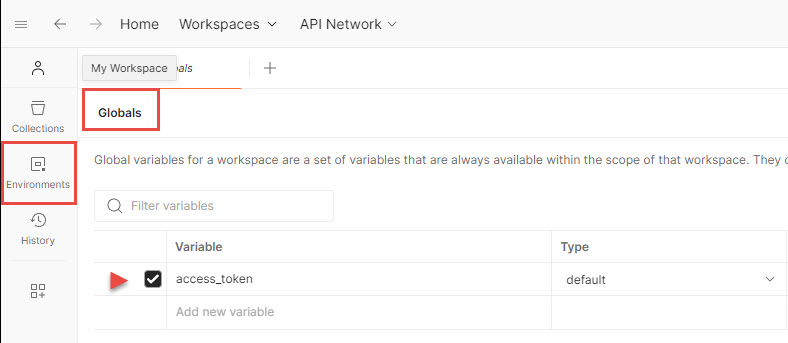
- Go to the “Environments” section in Postman.
- Go to “Gobals” and define the global-specific variables, normally
client_id,client_secret,tenant, and theaccess_token. - Select your environment or create a new one if necessary (you can call name it exactly with the same name as the environment name in Business Central).
- Add the Environment-specific variables, normally
companyXYZ,Environment, etc.
Setting Up the Pre-request Script:
Use the ‘Pre-request Script’ tab within your collection or request to automatically handle the token retrieval and refresh. This script runs before each request, ensuring that your access token is always current.
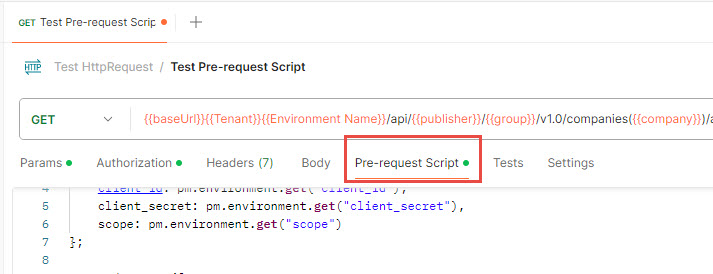
The only thing that you must consider is that, in every call you’re going to perform two calls and you are just going to use the token for this call. I use my refined script that facilitates the management of authentication tokens by checking their validity and refreshing them as necessary:
1
2
3
4
5
6
7
8
9
10
11
12
13
14
15
16
17
18
19
20
21
22
23
24
25
26
27
28
29
30
31
32
33
34
35
36
37
38
39
40
41
42
43
44
45
46
47
48
49
50
51
52
53
54
55
56
57
58
59
60
// Function to check if the token is still valid
function isTokenExpired() {
    let expiry = parseInt(pm.globals.get("token_expiry"));
    return !expiry || (new Date().getTime() > expiry);
}

// Function to check if the token is null or an empty string
function isTokenNullOrBlank() {
    let token = pm.globals.get("access_token");
    return !token || token === "";
}

// Get the token if it's expired, not present, or blank
if (isTokenExpired() || isTokenNullOrBlank()) {
    var url = 'https://login.microsoftonline.com/' + pm.globals.get("tenant") + '/oauth2/v2.0/token';
    var body = {
        grant_type: pm.globals.get("grant_type"),
        client_id: pm.globals.get("client_id"),
        client_secret: pm.globals.get("client_secret"),
        scope: pm.globals.get("scope")
    };

    pm.sendRequest({
        url: url,
        method: 'POST',
        headers: {
            'Content-Type': 'application/x-www-form-urlencoded'
        },
        body: {
            mode: 'urlencoded',
            urlencoded: Object.keys(body).map(key => ({key: key, value: body[key].toString()}))
        }
    }, function (error, response) {
        if (error) {
            console.log(error);
        } else {
            try {
                var jsonData = response.json();
                var now = new Date().getTime();
                var expiresInMs = jsonData.expires_in * 1000;
                var expiryTime = now + expiresInMs;

                // Assuming JSON response has 'access_token' field
                pm.globals.set("access_token", jsonData.access_token);
                pm.globals.set("token_expiry", expiryTime.toString());

                var readableExpiry = new Date(expiryTime).toLocaleString();
                console.log(`New token obtained. It will expire on: ${readableExpiry}`);
            } catch (parseError) {
                console.error("Error parsing JSON response:", parseError);
            }
        }
    });
} else {
    var expiry = parseInt(pm.globals.get("token_expiry"));
    var readableExpiry = new Date(expiry).toLocaleString();
    console.log(`Token is still valid. It will expire on: ${readableExpiry}`);
}

console.log(pm.globals.get("access_token"));
Using the Token in Requests:
Once the token is stored in your Workspace/Global variable, you can easily use it in API requests by referencing it in the header or authorization parameters.

Monitoring and Debugging:
Monitor the token status and troubleshoot any issues with the help of Postman’s built-in console (Ctrl+Alt+C). Log the token status and any errors to ensure your API calls are authenticated successfully.
1
console.log(`Current Access Token: ${pm.environment.get("access_token")}`);
These kind of feedback are lifesavers:

This approach automates the token management process, reducing manual efforts and potential errors, and ensures that your API testing in environments like Microsoft Dynamics 365 Business Central is efficient and secure.