Publish Angular App in Azure
Introduction
In this blog post, we will guide you through the steps to publish an Angular app in Azure using Visual Studio Code. By following these steps, you can easily deploy your Angular application and ensure it runs smoothly in the cloud.
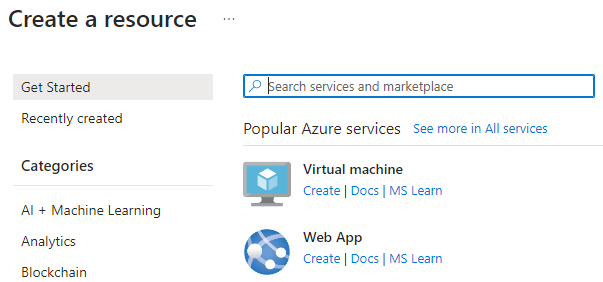
First Step is to create your Web App in Azure portal
You will need to create a Azure resource Web App to host your application, you will need to create the Web App in the specific OS that you’ve used to develop your application:
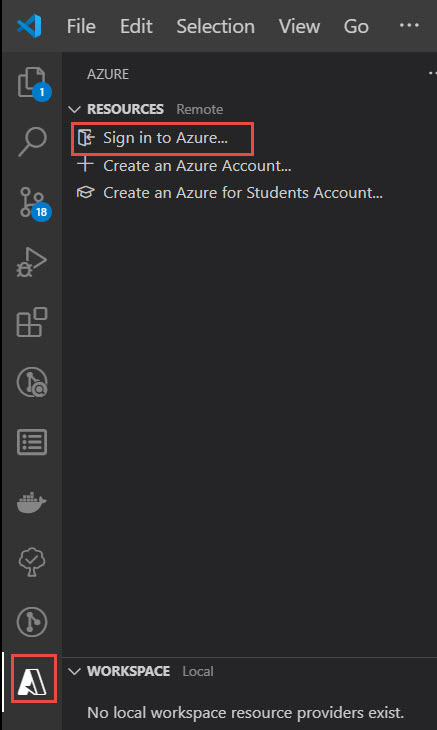
Now Sign in to Azure from VS Code
Use the Azure App Service extension to log in to Azure from VS Code:
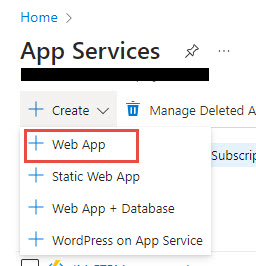
Next Step is to Create the Web App in Azure
Create a new Web App in the Azure portal to host your Angular application.
Create the build in Angular
Generate a production-ready build of your Angular app using the Angular CLI.

Last deploy the Web App
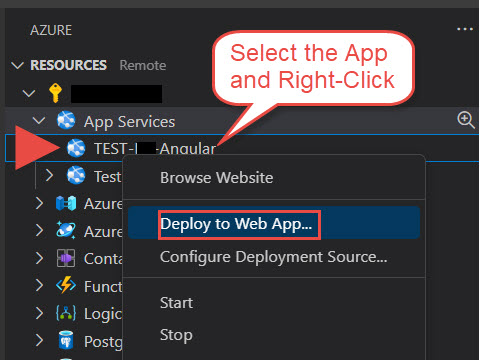
Deploy the generated build files to the Azure Web App.Here you’ll need to browse the contents of the /dist folder for the build.
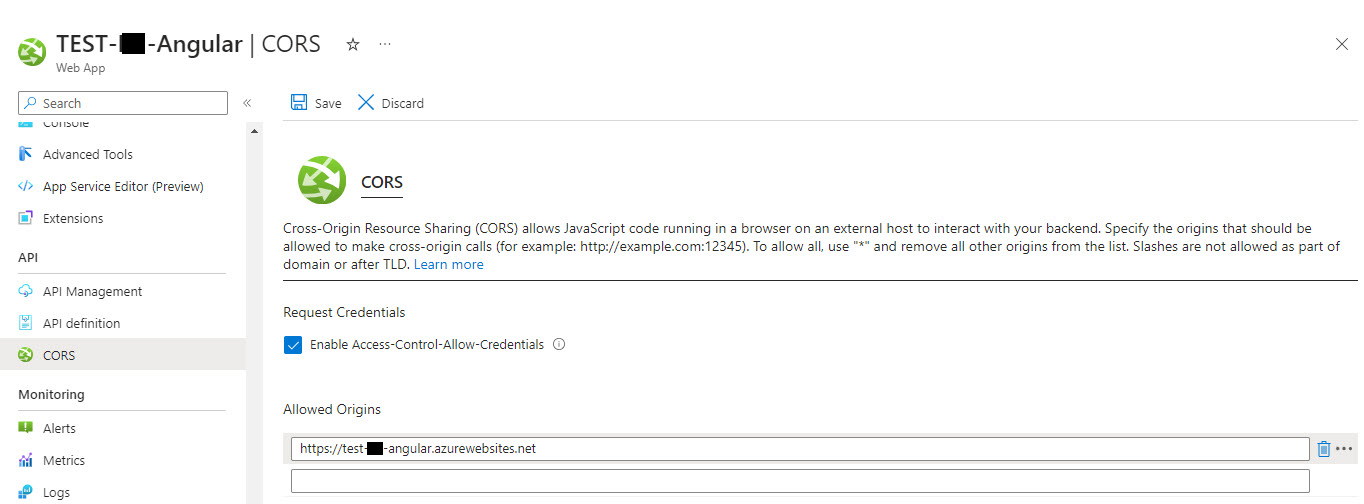
Remember to address the CORS issue if you are going to receive incoming API calls
Ensure you configure CORS settings correctly to handle incoming API calls.If your app makes outgoing API calls, check the CORS settings on the receiving end (which might be another Azure Web App or Azure function).